
A round robin in Follow Up Boss will allow you to automatically distribute your leads to a select group. You can choose to have the leads distributed evenly to all of your team members, or a select few. For more details about lead distribution options, please visit help.followupboss.com. This article will cover setting up a basic round robin.
When you log into Follow Up Boss, your default view is "All People".
Click Admin in the top panel.
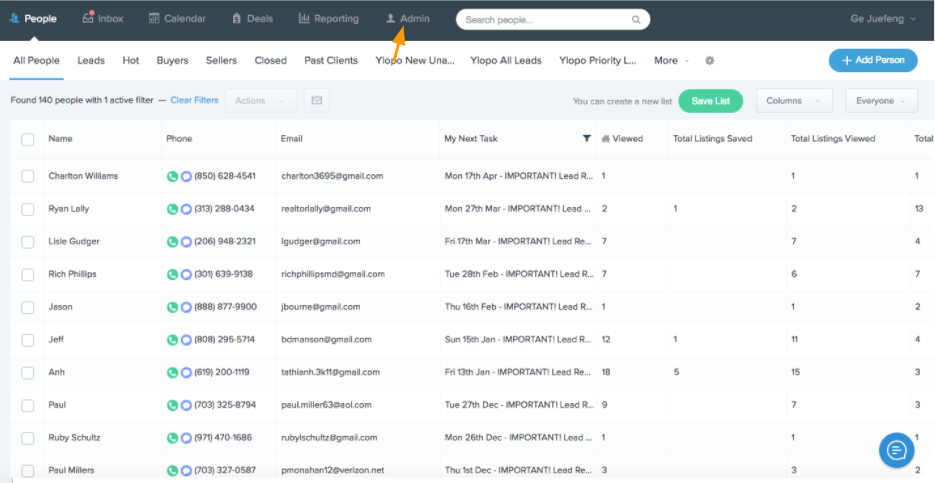
A new menu will now appear below the first header. Click on the "Groups" subcategory.

You can either click on the top right side where it says "Add Group" and add a new Group, or you can click to edit an existing group by clicking on the pencil and pad icon to the right of the Group name.

Check off the names of any agents that you would like to include in this Group, and choose whether you'd like to have people in the group claim leads, or do a round robin distribution. If you do a first-to-claim distribution, add a fallback assignment, then click "Save Changes".

Next, click on the "Lead Flow" subcategory.

You will see that all of your lead sources are listed here. Change the "Agent" field for both "Ylopo Buyers" & "Ylopo Sellers" to the Group name that you just setup. By default, this is set to the account holder's name.

You can see below that we've updated the "Agent" field to the Group we've just created. The round robin distribution will now apply to these lead sources.

At this point, you can return at any time to the "Groups" page and add or remove agents from that group. The Lead Flow will not need to be updated again unless you would like to change the assignment to a new group or a single agent.
Still, need help? Contact Us
Last Review: 8/1/21 Colleen M.
Comments
0 comments
Please sign in to leave a comment.