
PURPOSE
The purpose of this article is to walk you through troubleshooting various issues you may encounter while verifying your domain on Facebook.
If you're still unable to verify your domain after troubleshooting, please contact marketing@ylopo.com for further assistance.
CLAIM YOUR DOMAIN IN YOUR FACEBOOK BUSINESS MANAGER ACCOUNT
Issue: Domain has already been verified by another business
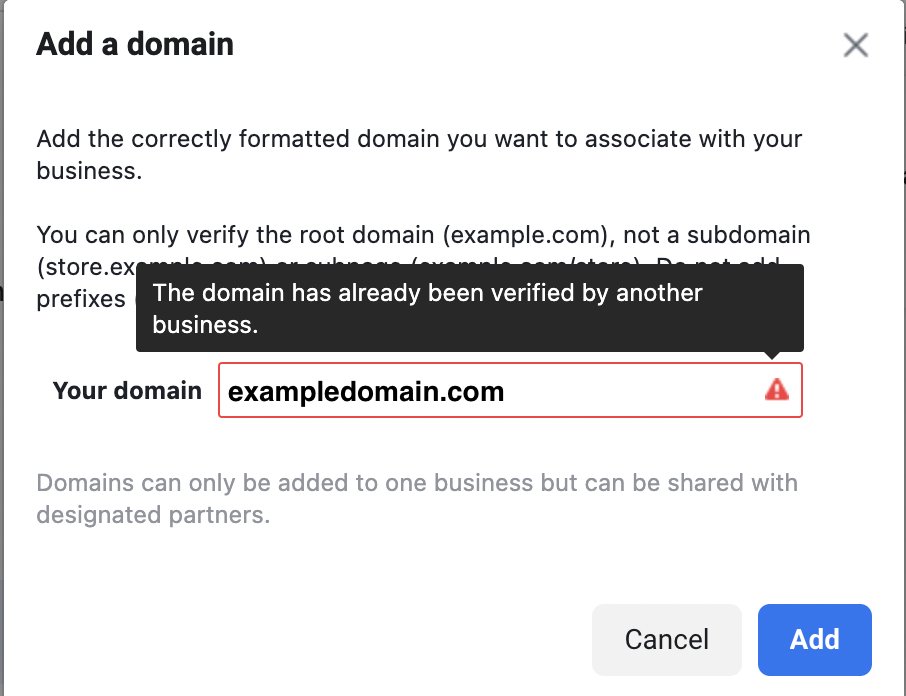
Reason: Domains can only be added to one business but can be shared with designated partners. If you are attempting to add a domain to your Business Manager account that has already been added to another business, you may see an error statingThe domain has already been verified by another business.
Solution:
STEP 1 - DETERMINE THE CURRENT OWNER OF THE DOMAIN
- Click Add > Request Access to Domain
- Add your domain then toggle on Link to Domain and Manage Domain and click Request Access
- You will see the current owner listed below your domain name, next to "Owned By." You’ll also see the business ID of the owner next to "ID." (Note: You may have to click on the domain you just requested access to view. It should say "Pending Approval").
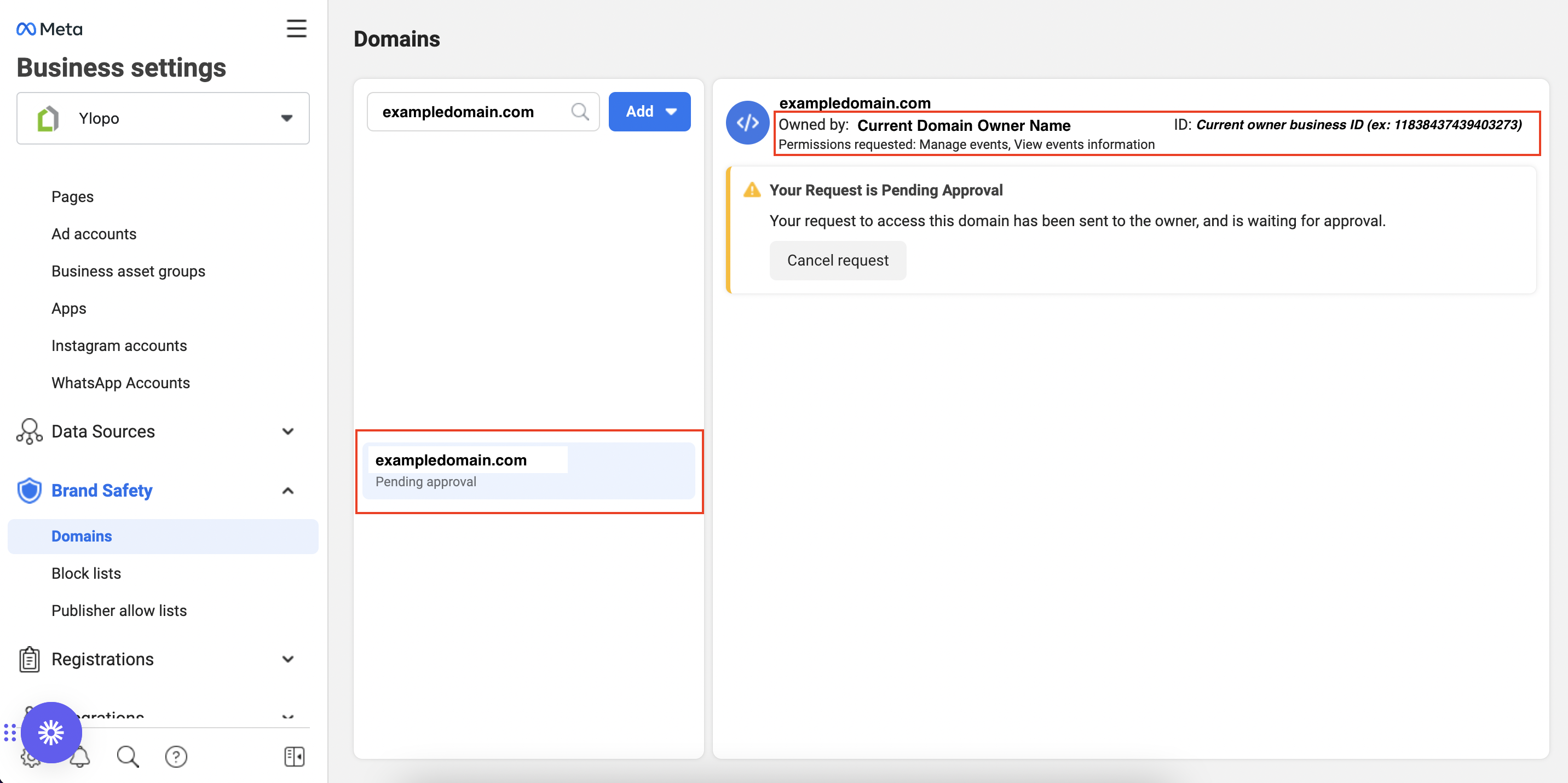
STEP 2 - CONTACT THE CURRENT OWNER OF THE DOMAIN TO GRANT YOUR REQUEST
Once you have determined the current owner of the domain by requesting access to it, you can determine if you will need to reach out to the current owner or if you can grant access yourself. You will have two options...
Option 1: If the current owner of the domain is a Facebook Business Manager account that YOU OWN, you can grant permission from the owning account.
Option 2: If the current owner of the domain is a Facebook Business Manager account that YOU DO NOT OWN, you will need to reach out to the current owner so that they can grant permission. In this case, you also have the option to request that the current owner REMOVES your domain from their account so that you can claim ownership in your own Facebook Business Manager account.
Option 1 Steps
- Open a new tab and go to https://business.facebook.com/settings/ for the account that currently owns your domain. (Note: You may want to do this in an incognito browser so that you can sign into the correct Business Manager account).
- Click on Requests and then Click Approve. (Note: You should see your domain access request here).
- If all steps were completed successfully, you will see your domain listed as Verified in the account you sent the request from. Once this is completed, you can continue sharing your domain with Ylopo.
Option 2 Steps
- Contact the current owner of the domain via phone or email, and ask them to grant your domain access request OR ask them to remove your domain from their account so that you can claim ownership. It will be faster to have the current owner Grant your Access request. (Note: If you are unsure of the current owner of the domain, or how to get in touch with them, please contact marketing@ylopo.com for further assistance).
Example Email (Grant Access Request):
SUBJECT: Request for Facebook Business Manager - Grant Domain Access
BODY: Your Facebook Business Manager account, INSERT THEIR OWNER NAME AND ID, currently owns my domain, INSERT YOUR DOMAIN HERE, and I need access to manage the domain. Please grant the access request as soon as possible and confirm with me once complete.
Example Email (Remove Domain):
SUBJECT: Request for Facebook Business Manager - Remove My Domain
BODY: Your Facebook Business Manager account, INSERT THEIR OWNER NAME AND ID, currently owns my domain, INSERT YOUR DOMAIN HERE, and I need you to remove it from your account so that I can claim ownership in my Facebook business manager account. Please remove my domain from your account as soon as possible and confirm with me once complete.
- Once you receive confirmation that either access has been granted, or the domain has been removed, you should be able to move forward with verifying your domain.
Below you can find a few Common Domain Owners and their contact information.
| Domain Owner | Email Address |
| BoomTownROI | digitalstrategy@boomtownroi.com |
| CHIME | support@chimeinc.com |
| CINC | support@cincpro.com |
| Curaytor | support@curaytor.com |
Issue: Cannot see the option for Domains
Reason: Only business admins can see all options (including Domains) to manage the account. You may need admin access to view this option.
Solution 1:
- Have the current admin sign in through their account.
Solution 2:
- Request admin access by following these instructions from Meta, Request Access to a Page in Business Manager.
- The admin will then need to approve the request from their business account by following these instructions from Meta, Approve a Partner or Ownership Request in Business Manager.
- Once your admin access request is approved, you should now see the Domains in the left sidebar.
- Note: If you are unsure of the current admin, please contact marketing@ylopo.com for further assistance.
ADD YOUR DNS TXT RECORD TO CONFIRM DOMAIN OWNERSHIP
Issue: Domain verification failed - Selecting the correct verification option
Reason: The incorrect verification option was selected during verification.
Solution:
- Under “Verify your domain: Select one option” choose “Update the DNS TXT record with your domain registrar” from the drop-down menu.
- Click Verify Domain again
Issue: Domain verification failed - Additional Errors
Reason: There can be many reasons for a failed domain verification. When verification fails, you will usually see an error that can be researched for a solution.
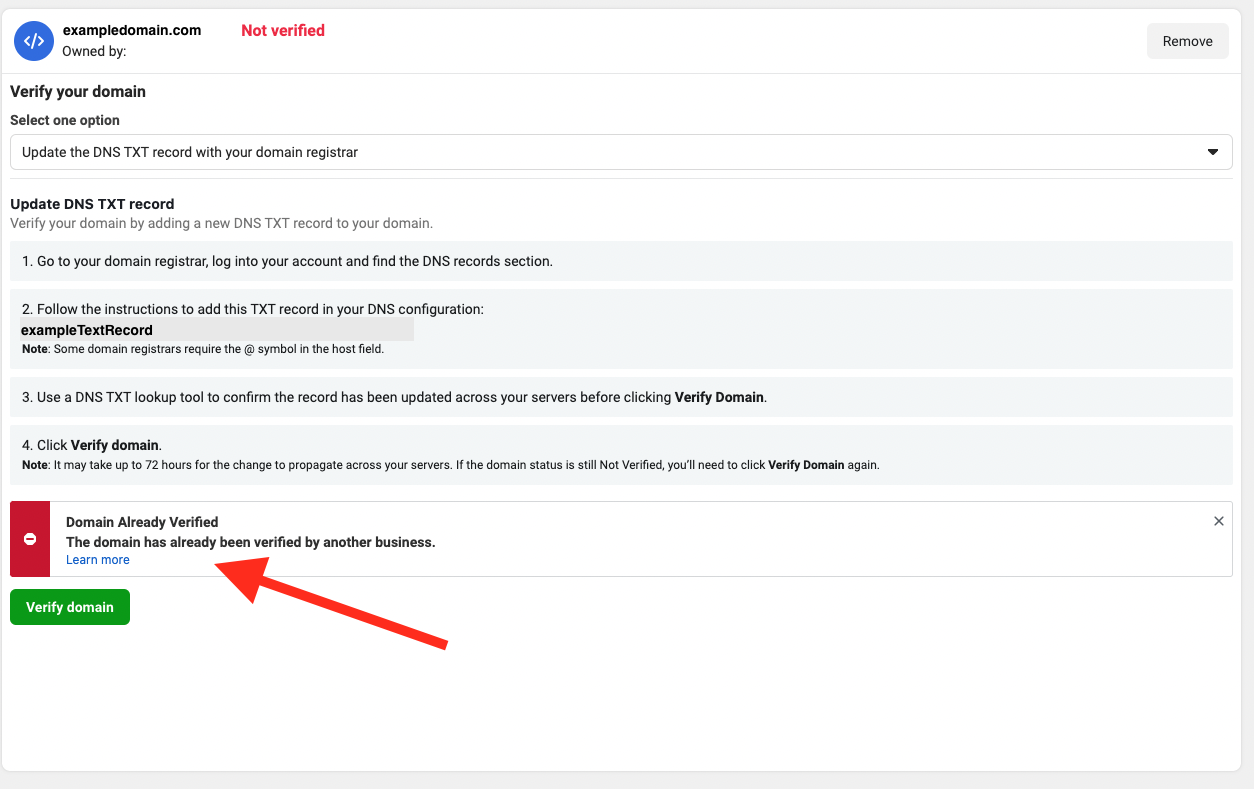
Solution:
- View the verification error
- Navigate to this help center article from Meta (Facebook), Troubleshoot Why You Can't Verify Your Domain in Business Settings
- Click on the error you're experiencing to view the troubleshooting steps.
ASSOCIATE YOUR FACEBOOK PAGE WITH YOUR VERIFIED DOMAIN
Issue: Unable to select Facebook business page under Classic Pages or New Pages
Reason: When sharing assets under your domain, you may not see your Facebook business page under Classic Pages or New Page Experience. This is likely because your Facebook business page is not shared with the business manager you are currently using.
Solution: Request and grant admin access to your business page
If you know the admin of the business page you can request access to the business page, and then grant access from the owning account.
- Request admin access by following these instructions from Meta, Request Access to a Page in Business Manager.
- You will then approve the request from the admin's business account by following these instructions from Meta, Approve a Partner or Ownership Request in Business Manager.
- Note: If you are unsure of the current admin, please contact Ylopo support for further assistance.
SHARE YOUR VERIFIED DOMAIN WITH YLOPO
Issue: 0 Pages have been added
Reason: Your Facebook page has already been shared with Ylopo
Solution: No action needed
Last Update: 1/9/23 Jacquelyn N.
Comments
0 comments
Article is closed for comments.